

The console
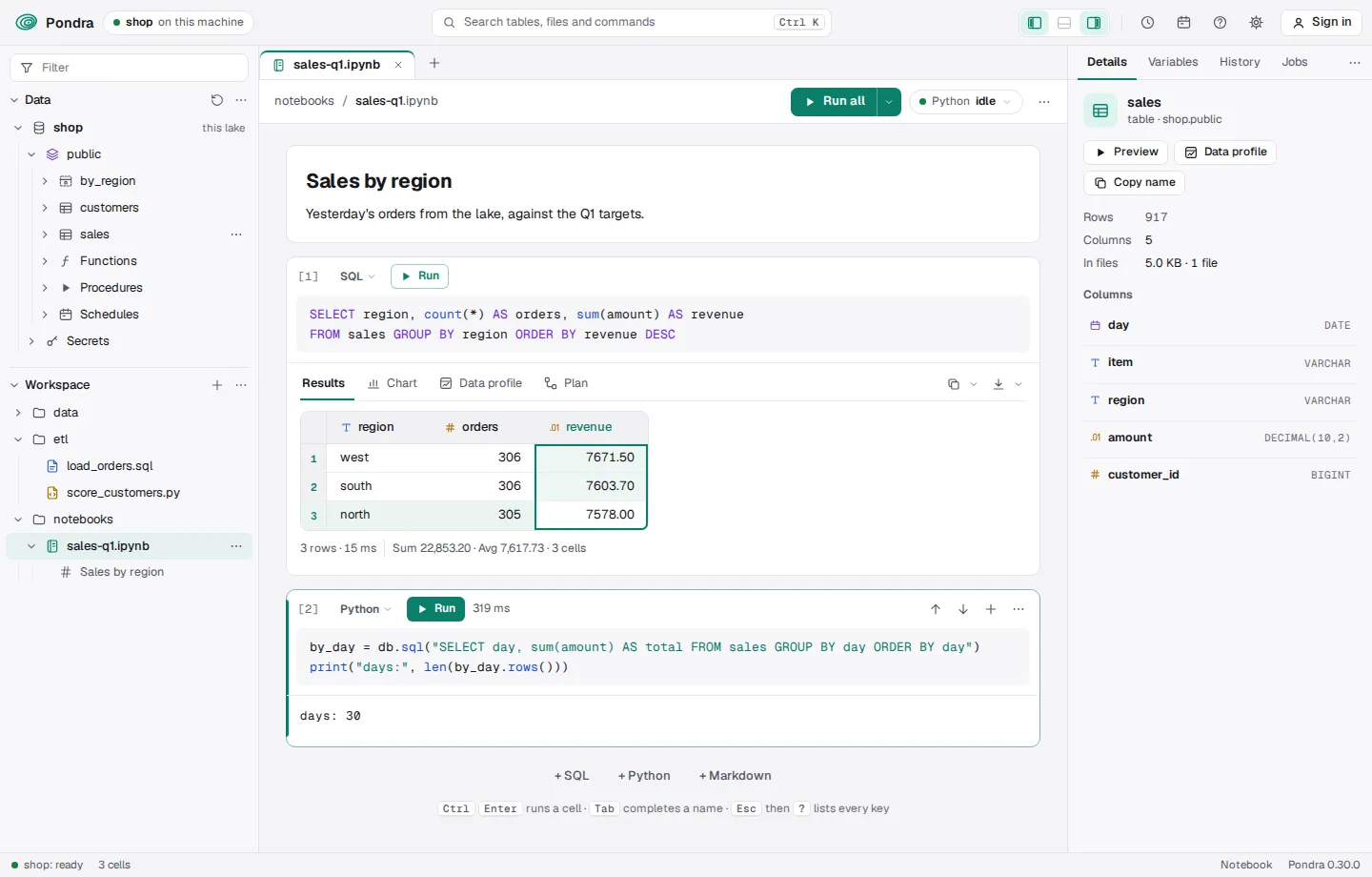
Every Pondra node serves a console at /. Open the node’s address in a browser and you get the
lake’s tables and files on the left, your notebooks, SQL, Python and data files in tabs in the
middle, and on the right the details of whatever you pick and your Python variables. There is nothing
to install. The page is part of the pondra binary: the code it loads first is under 70 KB
compressed, the rest (charts, plans, History, Jobs, Settings, Markdown, data files) loads the first time you use it,
and its fonts are 53 KB. It works offline, and it sends requests only to the node that served it.
Open it
Section titled “Open it”Start a node and open its address:
pondra serve lake # then open http://localhost:8080- The shell starts a node too. Its second line is the console’s link, with the shell’s key:
The console, as this shell: http://127.0.0.1:37957/#key=…. Open it while the shell runs, and the page works as the shell does (it reads this machine’s files too). pondra serve --lakes dataserves each lake in a folder as a database, and its console lists them all. See Many databases.- On another machine, start the node with tokens (
--admin-token) or make users (see Security). The console asks the first time: a user’s name and password (it then holds a session the node signs, 12 hours by default), or a token; your browser keeps it. Sign in ▾ in the top bar signs in as someone else, or out.
The page
Section titled “The page”- The top bar: where the page runs (the database, this node), search (Ctrl+K: tables, files and commands), the three pane switches (left, bottom, right), History (the clock: it opens the right pane at History, and a second click closes it), Jobs (the calendar, the same way), the keys (?), Settings (the gear) and Sign in.
- The left pane: a Filter box, then Data (databases, schemas, tables, views, columns) and Workspace (the lake’s files). The filter narrows both trees to the names that hold what you type; Esc clears it. Click a group’s name to fold it: Data folds to the top, Workspace to the bottom, with a line between them.
- The middle: a tab per open file. A dot on a tab (and beside the file in the Workspace) means it has changes not saved; a new file gets it once you type in it. The file’s toolbar shows Save only when there is something to save, and Ctrl+S saves the one in front.
- Many tabs keep their names and scroll: the wheel over them scrolls them, a thin bar above them shows where you are (drag it), and ⌄ at their right lists them all: a click brings one forward, its ✕ closes it, a right-click gives its tab’s menu, and Ctrl or Shift picks several to close at once. Drag a tab onto another to move it there. A tab comes back where you left it: scrolled to the same place, in the same cell. Right-click a tab to Pin it: a pinned tab stays at the left, always in sight, shows a pin instead of its ✕, and isn’t closed by Close others, Close to the right, Close saved or Close all, which the same menu has. Pinned tabs are pinned again next time.
- The right pane: Details, Variables, History (what ran: every statement, slow ones with their plans, and the node’s runs) and Jobs (what runs on its own: the schedules). Drag a tab to put it in another place. Details follows the tab in front; a table you pick stays there until you switch tabs. In a window up to 1180 px wide the pane opens over the page when you pick a table or a column, and closes as soon as you go back to your work.
- Each view’s ⋯ (or a right-click on its name) moves it to the other pane: Workspace can sit as a tab on the right, for instance. Or drag it there: a group by its name onto the right pane’s tabs (it goes beside the tab you drop it on), a tab onto the left pane. Drag a pane’s edge to set its width (a double-click resets it).
Settings
Section titled “Settings”The gear at the top opens Settings (Esc, its ✕ or a click outside it closes it). Its sections are at the left, grouped, and Search settings at the top finds a setting in any of them:
- Appearance: the theme (light the first time, dark, or as the system is); the accent, one of a few or a colour of your own, and the background, for each theme (Default puts the theme’s back: the panes, lines and pop-ups take their shades from it); the font, the console’s own (Geist) or the system’s.
- Editor and results: a SQL file’s statements (an answer for each, or only the last one’s), where its results show (below or at the right), and how pages of rows and Format work.
- Layout: Data first or Workspace first on the left, and Reset the layout (the panes, their widths and their tabs, as they were at first).
- Keys: every key, where it works (? opens Settings here).
- This node: Python (the one in use, and Choose…) and About (the version, the lake, the cluster, and where the settings are kept).
Sections an extension (or an enterprise build: users, tokens, audit) adds show here too, under their
own heading: register.setting below.
The node keeps them on its machine, so every lake and every session you open on that machine has
them: in PONDRA_CONFIG_DIR if it is set, else %APPDATA%\pondra on Windows,
~/Library/Application Support/pondra on a Mac, and ~/.config/pondra elsewhere
(console.json). A page opened from another machine keeps its own, in its browser.
- The tabs you had open open again next time, and the address (
#notebook=…,#file=…) opens one directly. - In a narrow window the side panes become drawers that close when you use the page.
Files in tabs
Section titled “Files in tabs”Click a file in the Workspace to open it in a tab (its tab comes forward if it is open):
| File | Opens as | Below it |
|---|---|---|
A notebook (notebooks/<name>, or an .ipynb in any other folder) |
cells: SQL, Python and Markdown | — |
.sql |
an editor with line numbers | Results, Messages, Chart and Plan (or at the right) |
.py |
the same editor | a console: the file’s runs, and a >>> line |
.csv, .tsv, .json, .jsonl, .parquet |
a table: CSV and JSON edited in place, Parquet read-only | Results, Chart and Data profile, as an answer’s |
.md, .txt and other text: .yaml, .toml, .ini, .xml, .html, .css, .js, .sh, a README or Makefile |
the editor (Preview draws a .md file’s Markdown) |
— |
The Workspace’s + (the tab bar’s too) makes a notebook, a SQL or a Python file, a file of any
other kind by its name (New file…: notes.md, config.yaml, rows.csv, opened in its editor),
or a folder, or puts files from your computer in the lake (Upload files…, or Upload a
folder… with everything in it). Files and folders dragged from your computer onto the Workspace
go in too, into the folder you drop them on. A new notebook, SQL or Python file is in the Workspace
at once, in the folder it will be saved to; it is not in the lake until you save it, and it asks for
its path the first time you do.
A file is saved where it is: Ctrl+S replaces it in the lake. If someone else saved it since you
opened it, your save is refused and theirs kept; open it again, or save under another name. (Over
HTTP, it’s If-Match: see Files.) Every node reads the new file at
its next statement.
Folders
Section titled “Folders”New folder (in a + menu, or New folder here in a folder’s menu) asks for a name (a/b
makes both) and makes the folder. A lake holds files, not folders, so an empty folder is a zero-byte
file, <folder>/.folder, put as any file is. The console never lists it, in the Workspace or in
search. A folder shows while it holds a file or a marker.
Each row of the Workspace has a ⋯. It shows when you point at the row, focus it, or have it picked, and opens what a right-click opens. A file’s menu opens, renames, downloads and deletes it. An open file’s name in its toolbar renames it too: click it, type, and Enter (Esc puts it back); its kind stays. A tab’s right-click and its ⋯ have Rename… and Copy path. A folder’s menu has New notebook here, New SQL file here, New Python file here, New file here…, New folder here, Upload files here…, Upload a folder here… and Delete folder…, which says how many files go, then deletes them all, the marker too.
Drag a file or a folder onto a folder to move it there (onto a file: into that file’s folder; below the tree: to the top). A folder moves with everything in it, and an open file’s tab follows it. The folder you would drop into lights up as you drag.
SQL files
Section titled “SQL files”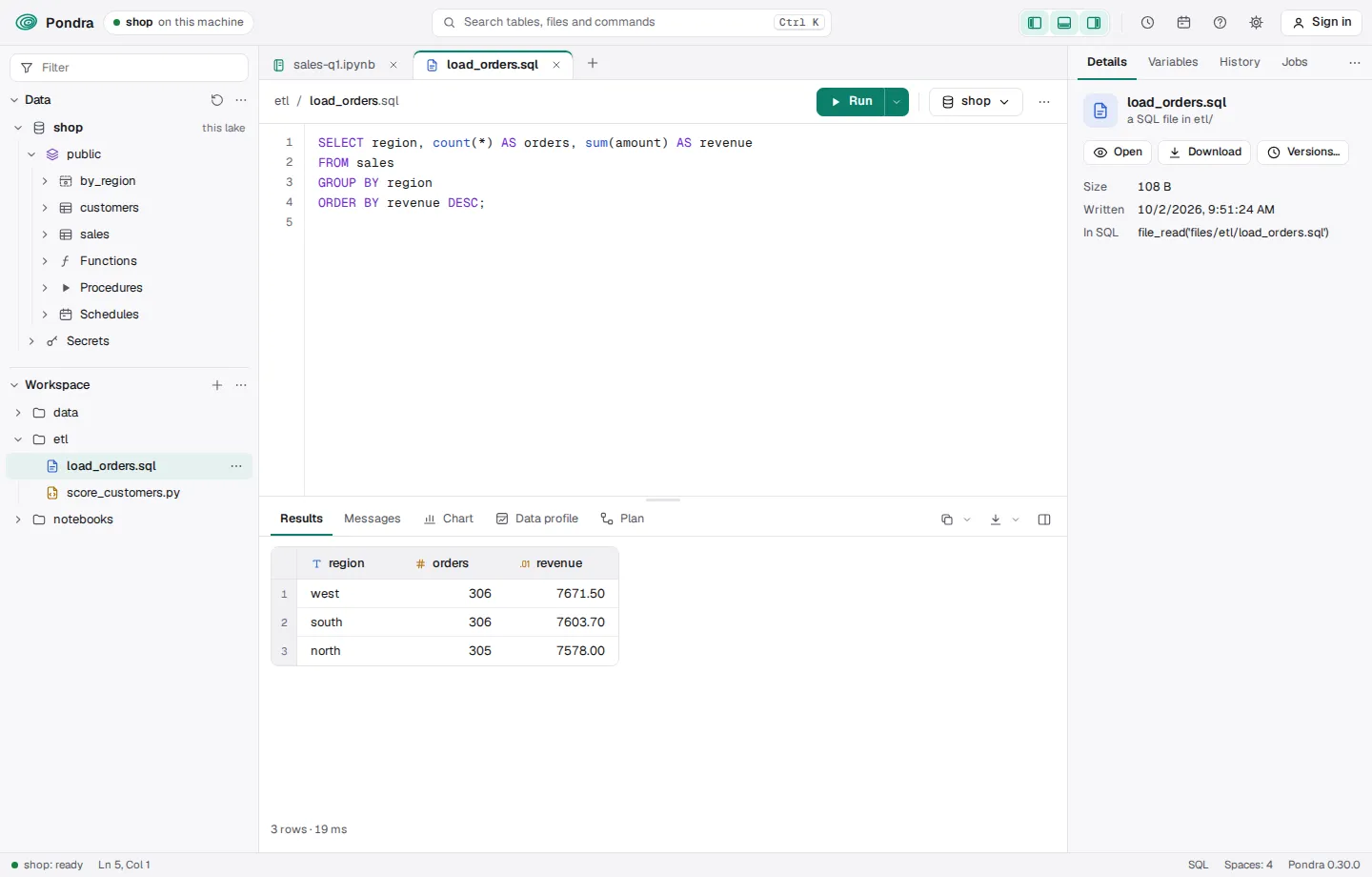
Run (Ctrl+Enter) runs what is selected, or else the statement the caret is in. Run file
beside it (Ctrl+Shift+Enter) runs every statement of the file, in order. (Settings → Ctrl+Enter
in a SQL file swaps the two keys.) Run ▾ has them both, Show execution plan, Format
file, Format selection, Create as table or view…, Run as a job and Schedule…. A
right-click in the editor starts with Run and Run file, then cut, copy and paste, Comment /
Uncomment, and the rest, Save as… too.
Create as makes the statement at the caret (or the selection) a table (its rows as they are now),
a view (its query, run when read) or a materialized view (kept up to date as its tables change),
showing the CREATE … AS it runs; Open in a new tab gives you that SQL to change first.
The database’s name in the toolbar says where the file runs. Its ▾, on a server (pondra serve --lakes), picks another database or takes one by name; on a lake, it lists the lakes attached (a
click puts the name in the file, for name.table); both copy the name.
- Each statement gets an answer. They run in order in the tab’s own session, and stop at the
first that fails. Results shows the answers with rows (and a failure); what the others did (a
DECLARE, aCREATE, anINSERT) is in Messages, which opens by itself when nothing gave rows. Above the results, a number per answer (2 5 rows,3 failed, numbered as in the file, in one row that scrolls, above Chart, Data profile and Plan too) picks the one shown, and 2 more in Messages says how many did something else. The same numbers stand beside the statements in the editor, tinted once they ran: the one shown has its lines tinted and its number filled. Pointing at a number shows its statement; a click shows its answer and leaves the caret where it is, and a double-click goes to its lines in the file. A;inside a string, a comment or a$$body doesn’t end a statement. - Each tab is its own session, as each editor tab of a database tool is its own connection: its SQL variables, temporary tables and Python are its own, and another file’s don’t leak into it. A tab’s session ends when you close it. A job’s files, run one after another, share one.
- Show execution plan (in Run ▾, a right-click, or Ctrl+Shift+E) shows the plan of the
statement the caret is in, or of what is selected, without running it, in the Plan tab.
Run query profile runs it with
EXPLAIN ANALYZEand shows each step’s rows and time. In a file of several statements, Show every statement’s plan gives each its plan, picked by its number (aDECLAREor aSEThas none, and says so). The next Run shows rows again. - Settings → A SQL file’s statements → The last one’s answer runs the file at once instead and shows only its last statement’s answer.
- A
DECLARE PARAMETER $namein the file is a parameter, with an input above the editor: its type, its default as the value, and what the comment above it (or after it, on its line) says. A value you change is marked, and ↺ puts the default back; Enter in one runs the file. Run sends the values with the statements, and the node binds them (numbers andtrue/falseas such, the rest as text); the browser keeps them for the file. A plainDECLARE $nameand$name = …are the file’s own working variables, never in the bar. (A$nameused and set nowhere gets an input too, with no default.) - Messages lists every statement that ran: its number, its SQL, how long it took, what it did
(
rows 3), and what it printed, set apart under Printed. A click picks one (its text stays selectable, to copy); a double-click or Enter shows its answer and its lines. - Chart draws the rows: bars, lines, areas, points or a pie, by any column, of any of the number columns (the chart picks lines over time, else bars, until you pick). Save keeps it as a PNG picture or an SVG drawing.
- Plan draws the statement’s plan as a graph: each step (a scan, a filter, a join, an
aggregate) above the steps it reads from, with the rows the planner expects from it, and a dashed
box where rows move between cores, or between nodes when a query is spread. Text shows
EXPLAINas it is: the logical plan and the physical one, as planned. Query profile runs the statement withEXPLAIN ANALYZE(it does run it) and puts each step’s rows (beside those expected) and time on it, the costliest marked in red, so you see where the time goes. Its download button copies the plan as text, or saves it as text or as a picture (SVG or PNG). - Data profile summarizes each column of the answer: its share of NULLs, its distinct values, its least and greatest value, and a histogram or its commonest values, from the rows shown; Profile every row runs it over the whole answer when there are more pages. (Two words, two things: a data profile is about the rows, a query profile about the time the query took.)
- Copy (at the right of the tabs) copies the rows, or the selection, tab-separated with
the headers; its ▾ has the other forms: without the headers, CSV, JSON, a Markdown table, SQL
VALUESrows, a SQL list forIN (…), or the columns’ names. Download saves every row, not only the ones shown, from the answer the node keeps (it keeps each for 20 minutes after it was last read; past that, the statement runs again): CSV, TSV, JSON, JSON lines, Parquet or Excel (.xlsx). - The results sit below the editor or at its right (the button at the right of their bar); drag the line between them. In a narrow window, the results give way to keep their buttons in reach.
- Right-click in the editor for Run and Run file, cut, copy, paste, select all, Comment / Uncomment, the Run ▾’s other items (above), Format file and Format selection: the SQL words in capitals and each clause on its own line, strings, names and comments as you wrote them. Shift+Alt+F formats the selection, or with nothing selected the whole file. Anything it can’t format stays as it was.
Python files
Section titled “Python files”Run file runs it in the tab’s own Python: what it printed and its answer show in the console
below. With something selected, Run (Ctrl+Enter) runs only that, and the right-click has
both. Stop interrupts it (its variables stay), as Interrupt in the Python chip’s menu does. Type a line after >>> and press Enter to run it there
too (↑ ↓ bring back the ones before).
Format file and Format selection (Shift+Alt+F, a right-click, or Run ▾) format it as
ruff does, by the node’s Python: it needs ruff (or
black) installed there (pip install ruff). Code that doesn’t parse stays as it was, and the
message says where it went wrong.
Jobs and schedules
Section titled “Jobs and schedules”A file’s Run ▾ (and a notebook’s, in notebooks) runs it on the node, where it goes on without the page:
- Run as a job saves the file and starts it, with the parameters’ values as they are now. History opens with the job at its top, and a note says when it is done or why it failed.
- Schedule… makes a task that runs it every so often (
15 minutes,1 day, or a cron line such ascron 0 2 * * * UTC).
Jobs, in the right pane (or the calendar at the top), is what runs on its own. Each schedule is a
card: its name and whether its last run worked, how often it runs and when next, a bar for each of its
last runs (its height the time it took, red if it failed), and the statement it runs. Click the card
for its last runs; Run now starts it at once (a CALL as a job), and its ⋯ opens its file,
copies the statement, or drops it. Flows will be a section here too.
Edit (and New schedule) opens a schedule’s editor. Pick how often: Every so many minutes,
hours or days, Daily, Weekly (on the days picked) or Monthly (on a day) at a time in a
time zone, or Cron for any cron line. The line below shows it as SQL takes it (1 hour,
cron 30 6 * * 1,3 UTC) and can be typed too: the picker follows what you type, and the line what
you pick. Below them is the statement it runs, in an editor of its own. A schedule the node refuses
(a cron line it can’t read) keeps the editor open with why.
History, in the right pane (or the clock at the top), is what ran, newest first. Its switch picks whose:
- This tab, This page or All: statements as the node remembers them
(
pondra.history). Each shows its SQL (or a Python cell’s first line), how long it took or how it ended, when, its rows, and how many nodes it ran on. All is every statement you may see, from every door (an admin sees everyone’s, with who ran it), but not the console’s own queries. A statement shows up a second or so after it ends. - Runs: the node’s runs: a file, a procedure, or a Python cell’s first line of code, with its id, who ran it and when, and how long it took or its error. A schedule’s runs are tagged with its name (click the tag for Jobs). A running one’s row updates until it ends.
Slow or failed keeps only statements that failed or took longer than PONDRA_SLOW_MS (1 s), and
runs that failed. Click a statement to see it whole, who ran it, and from where. A slow one also
shows its plan as it ran, with each step’s rows and time (Graph or Text), and where its time
went, each node’s part on a timeline. Open in a new file, Put it in the tab in front, Copy
it, Run it again and See its plan are its buttons, and a right-click gives the same. Click a
run for all of it (a cell’s whole code), to open its file or the code in a new file; right-click to
copy its id.
It’s the workspace of Run files as jobs.
Data files
Section titled “Data files”A CSV or JSON file opens as a table you can edit, in the grid every answer has (with its Chart and Data profile):
- Editing: double-click a cell, or select it and type; the value is edited in the cell itself. Enter keeps it and moves down, Tab moves right, Esc leaves the cell as it was. Delete empties the cells selected, Ctrl+X cuts them.
- Undo: Ctrl+Z takes back the last change and Ctrl+Y (or Ctrl+Shift+Z) does it again, as many steps as you like, before a save and after it (the buttons under the table do the same). A paste, or the rows deleted at once, is one step.
- Pasting: Ctrl+V pastes cells copied from a spreadsheet or from the grid. One value fills every cell selected; a block starts at the cell selected, and adds the columns and rows it needs when it runs past the table’s edges.
- Rows and columns: Add row and Add column are under the table; right-click a row’s number to delete it (or the rows selected).
A changed cell is tinted, a new row too, until you save; the toolbar says what changed, with Discard and Save. The lines you didn’t touch are saved exactly as they were. Query with SQL reads the file as a table in a SQL tab. A Parquet file, or a file over 10 MB, opens read-only (the first 10,000 rows): load it into a table to change it. A JSON file that isn’t a list of rows (a settings file, say) opens as text.
Answers, in a grid
Section titled “Answers, in a grid”Every answer (a cell’s, a SQL file’s) and every data file is shown in the same grid:
- Types: a coloured mark before each column’s name (
Ttext,#whole numbers,.01decimals, a calendar or a clock for dates and times, a switch for true/false, braces for JSON-like values). Hover over a header for its full type, least and greatest value, NULLs and distinct values (the card shows above the pointer, so it hides no rows). - Selecting: click a cell and its whole row lights up, to follow it across a wide table. Drag or Shift+click for a range, a row number for a row, a header for a column (and its profile in Details), the corner for everything. The arrow keys move (Shift: extend), Ctrl+A takes all. The bar below shows the selection’s sum and average.
- Columns: drag a header’s right edge to make a column wider or narrower; double-click the edge to fit it to its values.
- JSON: structs, lists, maps and text that holds JSON are shown in mono, keys, strings, numbers
and
true/nulleach in their colour; point at one to see it whole, laid out. - Copying: Ctrl+C copies tab-separated, so it pastes into a spreadsheet as cells;
Ctrl+Shift+C adds the headers. Right-click for Copy as CSV, JSON, SQL
VALUESrows or a SQL list of every value selected, Filter to these values, Sort and Profile. - A header’s right-click: copy the column’s name (or the names of the columns selected), as SQL too; copy its values with the header; sort; filter; profile it.
- Filtering: Filter column… (a right-click) asks how to compare (contains, starts with,
does not contain,
=,≠,>,≥,<,≤, is NULL, is not NULL) and the value; Filter to these values keeps the rows holding a value selected. Each filter is a pill above the grid (city is Oslo,amount > 50): click one to change it, its ✕ takes it away, + Filter adds one on any column, and Clear all takes them all away. They all apply. A filtered column has a small filter mark by its name: click it to change its filter. - Sorting: the small arrow in a header sorts by it (again: the other way).
- The line under it (a SQL file’s answer and a cell’s alike) says how many rows there are and
how long they took (
200,000 rows · 28 ms), how many the filters leave, and the selection’s sum and average. - Pages: an answer of more than 10,000 rows comes a page at a time. At the right of the line
under it,
10,001–20,000 ▾says which rows show, and ‹ › turn the pages (Alt+Page Down and Alt+Page Up in the grid). Its ▾ goes to a page, the first or the last, and sets the rows a page (100 to 50,000), for this answer and those after it; so does Settings → Editor and results → Rows a page. The node keeps the answer a while (PONDRA_PAGES_MB, 256 MB in all, for 20 minutes after it was last read), so a page is the same rows, in the same order, without running the query again; after that, turning a page runs it again for that page. Sorting and filtering are of the page shown.
SQL cells
Section titled “SQL cells”Type SQL and press Ctrl+Enter (⌘+Enter on a Mac), or click the cell’s Run. The answer
shows below the cell: the rows, each column’s type, how many rows there are, and how long it took.
Tab completes a name: a table’s, a column’s (the columns of the tables the cell names come
first), a function’s or a SQL word. After a table’s name or its alias and a dot (o.), it lists
that table’s columns; after a schema’s (sales.), its tables. When several fit, it lists them;
↑ ↓ and Enter pick one.
SELECT item, count(*) AS sales, sum(amount) AS totalFROM salesGROUP BY itemORDER BY total DESC;- A cell may hold several statements. They run in order, and the cell shows the last one’s answer (a SQL file shows each one’s).
- A statement that changes something (
INSERT,CREATE TABLE) shows what it did, such asrows 3, and the tables on the left update. - Errors come back in plain words, such as
No field named nope. Did you mean 'sales.item'?. - Show execution plan (the cell’s ⋯, a right-click, or Ctrl+Shift+E) shows the plan of what is selected, or of the cell’s last statement, without running it; Run query profile runs it and shows each step’s rows and time.
- An answer looks as a SQL file’s does: Results, Chart, Data profile and Plan as tabs above it (a chart of the rows, each column summarized, and the plan as a graph with its Query profile), Copy ▾ and Download ▾ at their right, and the line under it with the rows, the time and the pages. The tab open, and the chart’s settings, are kept with the notebook, so it opens with its chart. Copy ▾ copies the rows shown in any of the forms a SQL file offers, and Download ▾ saves them as CSV, TSV or JSON, or every row of the answer as the node keeps it (in any of the SQL file’s forms).
- Decimals keep their digits (
1.50), and integers too big for JavaScript arrive as text, so what you see is exactly what the lake holds.
A long answer scrolls smoothly however many rows it has: the page draws only the rows in sight. Click a column’s header and the details panel summarizes that column; Data profile summarizes them all.
SQL and Python cells, one page
Section titled “SQL and Python cells, one page”A SQL cell and a Python cell see each other’s work, in both directions:
- A SQL cell’s answer in Python. Type a name in the cell’s Result in Python field, beside Live (a
Python name: a keyword such as
asis refused). Once the cell runs, that name is a frame of its query in the page’s Python:df.to_pandas(),df.to_polars(),df.filter(…). A frame is the query, not a copy, so it reads the lake as it is when used. In the.ipynbfile the cell begins%%sql df <<, as Pondra’s Jupyter magic writes it, and a notebook run as a job does the same. - Python’s tables in a SQL cell. A SQL cell that names a pandas, Polars or Arrow table, or a
frame, that a Python cell made reads it by that name. The table is sent along with the query, as
db.sqlsends it, and a table in the lake wins over a variable of the same name. - Temporary tables and views (
CREATE TEMP VIEW) are the page’s too, seen from both kinds.
import pandas as pdtargets = pd.DataFrame({"item": ["tea", "cake"], "target": [3, 1]})-- a SQL cell on the same page: `targets` is the Python cell'sSELECT s.item, count(*) AS sold, t.targetFROM sales s JOIN targets t USING (item)GROUP BY s.item, t.target ORDER BY s.item;item sold targetcake 1 1tea 2 3The lake, on the left
Section titled “The lake, on the left”- Data: tables and views. Each kind has its icon: a table a grid, a view the same grid drawn
dashed, a materialized view a grid with a solid header, and a view of files (
CREATE EXTERNAL TABLE) a page with a grid on it. Open one to see its columns: each has its type’s coloured mark and its SQL type on the right; a key column has a key. - Click a table, a view, a function, a procedure, a schedule or a secret to see its details on the right. Double-click a table or a view to open it in a tab of its own (below). Double-click a column to put its name where you are typing (a click only picks it).
- A table’s own tab shows its rows in the grid, with its details at the right. WHERE and
ORDER BY above them pick the rows it reads (Enter reads them again), and so does how many (100,
1,000 or 10,000). A table’s rows are edited in place as a data file’s are: double-click a cell or
type, paste a block (it adds the rows it needs, never a column), Add row, a row number’s
right-click to delete rows, Ctrl Z and Ctrl Y. An empty cell is
NULL. The toolbar says what changed; click it for the SQL a save runs, in a new SQL tab. Ctrl S (or Save) runs it as one transaction: the rows added, then the cells changed, then the rows deleted, each row found by its_row_id. A value its column can’t take (text in a number) is refused before anything is sent. Discard reads the rows again. A view, a materialized view and a view of files open read only. The tab comes back with the others when the page is opened again. - Right-click anything for what can be done with it, each as the SQL it runs (a change that
can’t be undone asks first):
- a table, a view or a materialized view: Open (its tab), Preview (its first 100 rows: in a
new cell when a notebook is in front, else in a new SQL tab; or in Python), Details and data
profile, Watch it live (a SQL tab of its rows, Live on), Script as…, Insert rows…, Import rows from a file… (a CSV,
JSON or Parquet file from your computer, put in the lake’s
imports/folder and read in by column name), Download every row…, As a Kafka topic…, New ▸ (a view of it, a materialized view counting it, a copy of it), Add a column…, Rename…, Refresh, Copy the name (the whole name,lake.schema.table; Copy the short name as SQL here writes it; its column names; as Python), Truncate… and Drop…. Script as shows itsSELECT,INSERT, upsert,UPDATE,DELETE,MERGE, loading a file, exporting,CREATE(from the catalog: its columns, key, partitioning, options) andDROP, each in SQL or in Python (db.table("t"),db.sql(…)), to open in a tab or copy; - a column: its values counted, its range and NULLs, Add a column…, Rename…, Change its type…, Drop…;
- a schema: New ▸, a second menu with a table, view, materialized view, external table, function, procedure or schedule in it (a template in a new tab) and a table from a file; List its tables and views (as an answer), Refresh, Copy the name, Copy the table names, Drop…;
- the lake: New ▸ (a schema, a table, a view, …), Attach a lake or catalog…, List its tables and views, Who has access…, a new database (a server’s), Checkpoint, Refresh, Copy the name, and for an attached one Detach…;
- Functions, Procedures and Schedules, listed under each schema, as Postgres keeps
them (
CREATE FUNCTION sales.f …is insales; a name without a schema is inpublic), and Secrets under the lake (a secret covers a bucket, not a schema): each one’s definition, use or call, start as a job, schedule, and drop; a secret’s values are never shown, only replaced; - Users and roles under the lake: New user… (a name, a password, superuser or not, the
roles it is in) and New role… on the group’s menu, the statement shown as you fill it in
(the password as
'***'). Click one for how it signs in, its roles and members, its grants (each with a × to take it back) and its definition; its menu has Grant…, Its roles… (a click joins or leaves one), Set a password…, New token… (shown once), Limits…, superuser or not, and Drop….
- a table, a view or a materialized view: Open (its tab), Preview (its first 100 rows: in a
new cell when a notebook is in front, else in a new SQL tab; or in Python), Details and data
profile, Watch it live (a SQL tab of its rows, Live on), Script as…, Insert rows…, Import rows from a file… (a CSV,
JSON or Parquet file from your computer, put in the lake’s
- Who has access…, on a table’s, a schema’s or the lake’s menu and Who may use it… on a
secret’s, lists who may do what with it: granted on it, or through its schema or every table (those
show where they come from), and the superusers. Each grant has a × that takes it back at once
(
REVOKE). Below, pick a user or role, what it may do (SELECT,INSERT,UPDATE,DELETE) and, for reading a table, which columns, and Grant: theGRANTit runs is shown as you pick. A user’s Grant… is the same the other way round: pick what it is on. See Users, roles and grants. - Workspace lists the lake’s own files (
PUT /files/…,files()) by folder, and your notebooks undernotebooks, with the headings of the one in front as its outline. A new file not saved yet is listed too, with the dot. Whoever may read the lake may read its files, from SQL too.
The details panel
Section titled “The details panel”The panel on the right (its button is at the top right) shows what you picked:
| Picked | It shows |
|---|---|
| A table | rows, columns, key, partitioning, clustering, the formats it is published in, and its size in files; each column with its type, NOT NULL and default |
| A view | its definition, and its columns |
| Data profile (a table’s or a view’s) | each column’s share of NULLs, its distinct values (approximate), its least and greatest value, and a histogram (numbers, dates, times) or its five commonest values. It reads the whole table: the numbers are the table’s, not a sample’s |
| A column of an answer | the same, from the rows the answer holds |
| A file | its size, when it was written, and how SQL reads it |
| A function, a procedure, a schedule or a secret | what it is, its first actions as buttons (the rest in More), its facts (language, arguments, what it returns; how often and when next) and its definition |
| A user or a role | how it signs in (a password, tokens: each with a × to drop it), its roles and members, its limits, its grants (each with a ×) and its definition |
| Nothing | the lake: its tables, views, rows and size, and its cluster |
Python cells
Section titled “Python cells”A Python cell runs on the node, next to the data. db is the connection. What the code prints shows
under the cell, and its last line, if it is an expression, comes back as rows: a
frame, a pandas or Polars DataFrame, an Arrow table, a list of dicts,
or one value.
by_region = db.table("sales").group_by("region").agg(pondra.col("amount").sum().alias("total"))print("regions:", len(by_region.rows()))by_region.sort("total", descending=True)Cells share variables, as in a notebook: the next cell sees what this one made.
best = by_region.sort("total", descending=True).rows()[0]print("best region:", best["region"], best["total"])The node runs a Python cell as Postgres’s anonymous code block, DO LANGUAGE python. You can send
the same block from psql or any client:
DO LANGUAGE python $$print("tea sold:", db.sql("SELECT count(*) FROM sales WHERE item = 'tea'").item())$$;- The node needs Python: start it with
--python auto(the Python that has thepondrapackage) or--python /path/to/python.pondra.local()does this for you. - A Python cell needs an admin token, since it runs code on the node. With no tokens set, the node
listens only on
127.0.0.1, and anyone who can reach it is its admin. - A notebook is a session, and its Python cells run on one Python worker kept for that session, in one
namespace, like a notebook kernel; another notebook (or Python file) has a worker of its own. What one cell makes (variables, imports, functions, frames such
as
orders = db.table("sales")), the next cell sees. A cell that fails keeps what it did before the failing line._holds the last answer, and a cell’s single value comes back as a column namedvalue. One cell runs at a time. - The session’s Python ends when you close its tab or the page (or, in psql, when the connection closes), after
PONDRA_SESSION_IDLE_SECS(3600) seconds idle, or if it grows pastPONDRA_WORKER_MB(2048) MB. The next cell then starts empty, and a notice says so. - A
DOblock sent without a session runs fresh and shares nothing. In psql, a connection is a session. Over HTTP, send thex-pondra-session: <id>header, as the Python and JavaScript clients do: see Functions and procedures. - A Python error names its line in the cell:
ZeroDivisionError: division by zero, line 2: 1 / 0. - Stop (the cell’s Run button while it runs, I I on a cell after Esc, or Interrupt in the Python menu) interrupts the
cell on the node: it ends with
KeyboardInterrupt, and its variables stay. On Windows, where one process can’t interrupt another, Python restarts instead and the variables go. A cell whose page stopped waiting for it never holds up the next one.
Which Python
Section titled “Which Python”The Python chip in a notebook’s (or Python file’s) toolbar says whether Python is running, and
its menu interrupts a cell, restarts Python, shows the variables, and has Choose the Python….
That lists every Python the node finds on its machine (on the PATH, the py launcher’s, conda’s
and virtual environments’ among them), each with its version and whether it has pondra and
pyarrow, and for one that lacks them the pip install command to run. Pick one, or give a
Python’s path. The choice is the node’s from then on, kept on its machine for next time (beside the
settings, python.txt).
With --python auto, the node tries the Pythons it finds at once and takes the first that works;
one that doesn’t answer within PONDRA_PYTHON_PROBE_SECS (15) seconds is passed over, so a broken
install never holds it up. If Python can’t start, the message says why, with what it printed.
Figures
Section titled “Figures”A figure shows under the cell as a picture: a matplotlib figure (or seaborn’s) that the cell ends
with, or draws with pyplot, and a Pillow image.
import matplotlib.pyplot as pltby_day = db.sql("SELECT day, sum(amount) AS total FROM sales GROUP BY day ORDER BY day").to_pandas()fig, ax = plt.subplots(figsize=(7, 2.5))ax.plot(by_day["day"], by_day["total"])figThe node needs matplotlib (or Pillow) in its Python for this: pip install matplotlib.
Variables
Section titled “Variables”The Variables tab of the panel on the right lists what this page’s Python holds: each name,
its type, its size (a frame’s rows and columns, a list’s length) and a short look at it (a
frame’s columns). Tab in a Python cell completes these names, and inside the string given to
db.sql("…") or db.table("…") it completes SQL’s: the lake’s tables, their columns, functions and
SQL’s words, as in a SQL cell.
The Python chip says whether a cell is running. Restart Python in its menu (or 0 0 on a cell after Esc) ends it: its variables go, and the next cell starts afresh (temporary tables stay, since they are SQL’s).
Markdown cells
Section titled “Markdown cells”Markdown cells hold text, drawn as GitHub draws Markdown: headings (# to ######, or underlined),
bold, italics, strikethrough, code, links ([text](url), <url>, a bare https://…, or
[text][name] with [name]: url below), pictures (), lists (nested,
numbered, and of tasks: - [ ], - [x]), quotes, tables (with :--: to align their columns), rules
(---) and code blocks (SQL and Python ones highlighted). A few HTML tags work as they are
(<br>, <kbd>, <sub>, <sup>, <u>, <mark>); any other HTML shows as text.
A link or a picture without a scheme is a file of the lake’s (data/chart.png, queries/daily.sql):
a link opens it in a tab, a picture is read from the lake. Press Shift+Enter to draw the cell, and
double-click it to edit. Its headings make the notebook’s outline, under it in the Workspace: click
one to go to its cell. A .md file’s Preview draws it the same way, its paths read from its folder.
A cell’s menu
Section titled “A cell’s menu”Point at the space between two cells (or above the first) for + SQL, + Python and + Markdown: each adds a cell there. A and B add one above or below the cell picked, and so do its ⋯’s Add a cell above and Add a cell below.
The kind at a cell’s top left (SQL ▾) makes it SQL, Python or Markdown, and back again. The ⋯ at
its top right (it shows when you point at the cell) runs the cells above it, or this one and those
below; hides its output (O: its code stays, and a click on the output brings it back); clears
its output; and deletes it. A right-click in its code has cut, copy, paste, comment, Run cell,
Run the cells above, Run this and the cells below, Format cell and Format selection
(Shift+Alt+F: SQL here, Python by the node’s ruff or black, as in files), a SQL cell’s Create
as table or view…, and Make it Python (or Make it SQL): the same query either way, SELECT … becoming db.sql("""SELECT …""") and back, so any cell moves between the two.
The notebook’s own ⋯ (in its toolbar) shows its Versions…, downloads it as .ipynb and
clears every output. Ctrl+K finds every command: a new notebook, file or folder, Upload files…,
restarting or choosing Python, the token, the keys.
Live answers
Section titled “Live answers”The Live switch keeps an answer current: a SQL cell’s, or a SQL file’s (at the right of its results bar, as a database tool’s grid has it). The node sends the answer again each time a commit changes a table the query reads, and the console changes the rows in place, lighting the ones that changed a moment; a SQL file’s bar says when it last changed. Nothing runs while nothing changes. Turn the switch off and the query stops. Watch it live in a table’s menu (the Data tree) opens a SQL tab of its own with its first rows, Live on.
SELECT region, sum(amount) AS total FROM sales GROUP BY region ORDER BY region;With Live on, an INSERT into sales from anywhere (another cell, psql, a Kafka producer, a
program appending over HTTP) shows in the cell within a fraction of a second. The console uses
/live, which any HTTP client can use too: every live cell of the page
shares one connection to the node, so however many are on, the page’s other requests (a Python cell,
a query) never wait for them.
Notebooks
Section titled “Notebooks”Ctrl+S saves the notebook in the lake, under the name in its toolbar:
- It is one file,
files/notebooks/<name>.ipynb, or<folder>/<name>.ipynbin any other folder (New notebook here in a folder’s menu, or an.ipynbuploaded there). Ctrl+S replaces it in place, refused if someone saved it since you opened it, as any file is. - Every file keeps its versions, notebooks or not: each save, with who made it and when. Versions… in a file’s ⋯ (or in the Workspace’s menu, or in Details) lists them; pick one to see what changed since, line by line, and Restore this version to make it the file again. A deleted file keeps its versions too.
- A notebook saved before versions, as
notebooks/<name>/<time>.ipynb, still opens; its next save makes itnotebooks/<name>.ipynb, and its earlier saves are among its versions. - Any notebook can be a job or a schedule (Run all ▾), and a run records the version it ran.
- Everyone who can read the lake can open them. They are files like any other, so you can list them in SQL:
SELECT path, size, written FROM files('notebooks/') ORDER BY written DESC;A notebook is a Jupyter notebook (.ipynb, format 4.5). SQL cells are saved as %%sql cells,
Python cells as code cells, and Markdown as Markdown. Each answer is kept with its cell (the first
100 rows) and shown, marked saved, until you run the cell again; a cell’s chart (or plan) open
is kept in its metadata (pondra.view, pondra.chart).
- Download saves the notebook to your computer. Jupyter, VS Code and GitHub open it as it is. In
Jupyter,
%load_ext pondramakes the%%sqlcells run (see Notebooks). - Upload files… puts any files from your computer in the lake. An
.ipynb(from Jupyter or anywhere else) opens as a notebook instead, and Ctrl+S then keeps it in the lake. Upload files here… in a folder’s menu puts them in that folder, an.ipynbtoo, as does dragging them onto the folder.
The console follows Jupyter’s keys. In a cell:
| Keys | What they do |
|---|---|
| Ctrl+Enter | Run the cell (a right-click has Run selection for a part of it) |
| Shift+Enter | Run it, then go to the next cell (a new one at the end) |
| Alt+Enter | Run it, then add a cell below |
| Ctrl+Shift+Enter | Run every cell, in order (it stops at one that fails) |
| Tab | Complete a name (after a letter), or indent |
| Shift+Alt+F | Format the cell (or what is selected) |
| Shift+Tab | Indent back |
| Ctrl+Space | List the names that fit here |
| Esc | Leave the cell, for the keys below |
After Esc, on the selected cell:
| Keys | What they do |
|---|---|
| Enter | Edit it |
| ↑ ↓ (or K J) | Go to the cell above or below |
| A, B | Add a cell above, below |
| D D | Delete it. Z brings it back |
| S, P, M | Make it SQL, Python or Markdown |
| L | Turn Live on or off |
| O | Hide its output, or show it again |
| I I | Interrupt its Python (the variables stay) |
| 0 0 | Restart Python |
| ? | Show these keys (Settings, Keys) |
Anywhere on the page:
| Keys | What they do |
|---|---|
| Ctrl+S | Save the file or notebook in front |
| Shift+Alt+F | Format the SQL or Python file in front (or what is selected) |
| Ctrl+K | Search tables, files and commands |
| Ctrl+B, Ctrl+J, Ctrl+Alt+B | Show or hide the left pane, the bottom panel, the right pane |
| ↑ ↓ ← → | Move in a tree (open, close) or along the tabs; Delete closes a tab |
| Alt+Page Down, Alt+Page Up | The next page of an answer’s rows, the one before (in its grid) |
The cluster at a glance
Section titled “The cluster at a glance”The top of the page says where the cells run: the database, this node’s role (leader, follower or reader), how many nodes the lake’s cluster has, and how many live queries are open. Hover over it for the nodes’ addresses. A query the node spreads over the cluster runs from the console like any other: see Clusters.
The page is light the first time; Settings makes it dark, or follow the system’s setting.
Extend it
Section titled “Extend it”The console is built to be added to: its own sections, tabs, kinds of cell and actions are
registered through the same small API an extension uses, window.pondra. Give a node the scripts
in PONDRA_CONSOLE_EXTENSIONS (separated as PATH is), and the page loads them after its own:
PONDRA_CONSOLE_EXTENSIONS=./history.js pondra serve lakeconst { register, on, ui, api } = window.pondra;
// A section on the left (a view: its ⋯ moves it to the right, as the console's own).register.section({ id: 'history', title: 'History', render: box => box.append(ui.h('div', {}, '…')) });// A kind of file: what opens in a tab for these paths.register.doc({ id: 'dash', match: path => path.endsWith('.dash'), open: async path => myDashboard(path) });// A tab of the panel on the right: what was picked on the left.register.panel({ id: 'sample', title: 'Sample', render: async (box, picked) => picked?.type === 'object' ? (await api.rows(`SELECT * FROM ${picked.t.q} LIMIT 5`)).map(r => ui.h('pre', {}, JSON.stringify(r))) : [] });// A view of an answer: the first one that matches draws it.register.renderer({ id: 'figure', order: 15, match: r => r.kind === 'rows' && r.rows.length === 1, render: r => ui.h('b', {}, String(r.rows[0][0])) });// An action: a button at the top, or an item of a ⋯ menu there (it shows once one is added).register.action({ id: 'share', menu: true, icon: 'copy', title: 'Share', run: () => ui.toast('Shared') });// Events: 'start', 'run', 'ran', 'pick', 'refresh', 'changed'.on('ran', (cell, answer) => console.log(cell.src, answer.kind));register. |
Adds |
|---|---|
view({ id, title, side, render(box, picked), tools, order }) |
a view, on the left (side: 'left') or a tab on the right |
section({ id, title, render(box), tools, order }) |
a view on the left |
panel({ id, title, render(box, picked), order }) |
a view on the right |
doc({ id, match(path), open(path) }) |
a kind of file, opened in a tab |
cellKind({ id, label, language, placeholder, run(text, signal) }) |
a kind of cell |
renderer({ id, match(answer), render(answer, cell), order }) |
a view of an answer |
action({ id, label or icon, title, run(), primary, menu, order }) |
a button at the top, or an item of the top bar’s ⋯ (shown once an extension adds one) |
nav({ id, label, icon, run() }) |
a place in a rail at the far left (it shows once one is added) |
key({ keys, title, run(cell), group }) |
a key on a cell, listed under ? |
setting({ id, title, group, icon, about, rows(), order }) |
a section of Settings: rows() gives [name, what it does, its control], under the heading group |
jobKind({ id, title, load(), item(x), empty, order }) |
a section of Jobs: what load() gives, each drawn by item |
pondra.configure({ fetch, token, headers }) changes how the page reaches the node, for a
gateway or a sign-in of your own. pondra.api runs SQL (run, rows, call), and pondra.ui
holds the page’s own pieces (h, icon, line, button, toast, menu, pick, add), so an
extension looks like the rest of the page. pondra.ui.notebook() gives the notebook as .ipynb
JSON and pondra.ui.open(nb, name) opens one, for an extension that keeps notebooks elsewhere;
pondra.ui.openFile(path) opens a lake file in its tab, and pondra.docs() lists the open ones. A
whole example is in the repository:
examples/console-extension.js.
The console’s files are at /console/ (console.js and the modules it loads, some the first time
they are needed, console.css, the fonts), and an extension at /console/ext/0.js, 1.js, …; the
browser keeps them until they change.